Best VS Code Extensions for Developers in 2026
The best extension stack is not the longest. Choose one tool for each job and remove anything that does not earn its place.

The best VS Code extensions in 2026 do more than decorate the editor. They bring coding agents, repository history, diagnostics, tests, containers, and remote environments into the place where developers inspect and change code.
That does not mean every useful extension belongs in every setup. VS Code can now coordinate local and cloud coding agents, while many language, debugging, and testing capabilities are built into the editor or supplied by project-specific extensions. Installing several tools for the same job creates noise, competing shortcuts, duplicate diagnostics, and more software with access to the development environment.
The best VS Code extension stack combines one primary coding agent, the quality tools enforced by the repository, the test integration used by the project, and the environment tools required to run the software. Everything else should solve a recurring problem that the editor and existing stack do not already handle.
This guide compares 14 current VS Code extensions and integrations across five development jobs. It also explains which tools overlap, when each one is useful, and how to build a smaller setup that remains understandable.
Best VS Code Extensions: Quick Answer
If you need a shortlist, start with the tools that match your actual workflow rather than installing every entry.
| Extension | Best for | Main value | Main tradeoff |
|---|---|---|---|
| Claude Code | Anthropic agent workflows | Repository exploration, edits, commands, and agent customization | Broad repository access requires careful permissions |
| OpenAI Codex | Codex and ChatGPT users | Interactive and background coding tasks in VS Code | Best fit is tied to the OpenAI or Copilot ecosystem |
| GitHub Copilot | GitHub-centered teams | Coding assistance and agent workflows across VS Code and GitHub | Features, models, and usage vary by plan |
| ESLint | JavaScript and TypeScript quality rules | Repository-defined diagnostics and fixes in the editor | Requires a working project ESLint configuration |
| Prettier | Consistent code formatting | Predictable formatting based on a shared configuration | Opinionated output can overlap with linter formatting rules |
| Error Lens | More visible diagnostics | Shows existing errors and warnings directly beside code | Can create visual noise in repositories with many diagnostics |
| SonarQube for IDE | Broader code quality and security analysis | On-edit static analysis across many languages | May overlap with language linters and team platforms |
| GitLens | Understanding code history | Blame, file history, commit context, and repository navigation | Some advanced workflows require GitLens Pro |
| GitHub Pull Requests | Reviewing GitHub work in VS Code | Browse, check out, review, and comment on pull requests | Designed specifically for GitHub workflows |
| Playwright Test | Browser and end-to-end testing | Run, debug, record, and inspect Playwright tests | Useful only when the project uses Playwright |
| Jest | JavaScript and TypeScript unit testing | Test discovery, watch mode, debugging, and coverage | Complex monorepos may need explicit configuration |
| Dev Containers | Reproducible development environments | Open a repository inside its declared container environment | Requires container configuration and a supported runtime |
| Container Tools | Building and managing containers | Container files, images, registries, Compose, and debugging | Adds little value to projects that do not use containers |
| Remote SSH | Development on remote machines | Edit, run, and debug directly on a trusted SSH host | The remote host becomes part of the local trust boundary |
How We Selected These Extensions
This is a source-based editorial shortlist, not a hands-on benchmark or a ranking based on download count. We reviewed current publisher documentation and Marketplace descriptions, cross-checked whether each tool has a distinct job, and stated its main tradeoff. We did not run identical repository tasks across the tools or measure output quality, so best means best fit for a stated workflow rather than a universal winner. Popularity can show adoption, but it does not establish that an extension is maintained, safe, relevant to a particular stack, or better than functionality already present in VS Code.
Each selected tool had to meet four criteria as of August 17, 2026:
- It solves a recurring development job. The extension must improve coding, quality, repository work, testing, or the execution environment.
- It has a distinct reason to install it. We excluded tools whose main function is already built into VS Code or fully covered by another shortlisted extension.
- Its current behavior is documented. Product descriptions come from the publisher’s current Marketplace page or official documentation.
- Its tradeoff can be stated clearly. Every extension adds configuration, permissions, resource use, or workflow complexity. A useful recommendation names that cost.
The list deliberately excludes themes, icon packs, snippet collections, and framework-specific language tools from the main comparison. Those can be valuable, but they are not universal recommendations. It also excludes VS Code-based editors such as Cursor and Windsurf because they are editors, not extensions installed into VS Code.
AI Coding Agents: Choose One
AI tooling is the largest change since the original version of this article. In 2026, the important distinction is no longer simple autocomplete versus no autocomplete. VS Code supports agent sessions that can read files, edit code, run tools, and work locally or in cloud environments. Its current documentation distinguishes Copilot, Claude, Codex, local, and cloud agent harnesses.
Most developers should choose one primary agent workflow first. Running several agents can be useful for comparison or specialized tasks, but overlapping agents also duplicate context, commands, subscriptions, and permissions.
1. Claude Code
Claude Code for VS Code brings Anthropic’s coding agent into the editor. Its Marketplace listing documents repository exploration, code edits, terminal commands with permission, editor context, subagents, custom commands, and MCP support.
Choose Claude Code when you want the Claude agent workflow without leaving VS Code. It is particularly useful for repository-level tasks that involve investigation before editing. That power also means the permission model matters. Review what the agent can read, change, and execute, especially in repositories that expose credentials, production tools, or sensitive data.
Best for: Developers who want Anthropic’s agent workflow inside their existing editor.
2. OpenAI Codex
OpenAI Codex supports interactive and background coding tasks in VS Code. Current VS Code documentation describes Codex as a local agent harness, with cloud options available through supported account configurations. That makes it more than a chat panel. It can participate in a longer task while VS Code keeps the session, code changes, and review surface together.
Choose Codex when your development workflow already centers on OpenAI or when background task execution is important. Evaluate it with the same repository tasks used for other agents. The useful comparison is not which demo looks fastest. It is which agent produces the clearest change, runs the right evidence, and requires the least corrective work.
Best for: Teams using Codex or ChatGPT for repository-level engineering work.
3. GitHub Copilot
GitHub Copilot is the most natural starting point for teams whose code, pull requests, and identity already live in GitHub. In VS Code it covers inline suggestions, chat, repository instructions, and agent workflows. It also connects naturally to GitHub-hosted review and cloud work.
Choose Copilot when integration and organization-wide GitHub administration matter more than selecting a standalone agent experience. The main evaluation question is which capabilities your plan includes and whether the feedback remains useful on your repositories. A wide feature surface is valuable only when the team knows which mode to use for each job.
Best for: GitHub-centered engineering teams that want one integrated starting point.
For a broader comparison that includes agent-first editors, terminal tools, and cloud environments, see 9 Best AI Coding Tools for Developers in 2026.
Code Quality and Diagnostics
These tools solve different layers of the quality workflow. ESLint applies repository rules. Prettier formats supported files. Error Lens changes how diagnostics appear. SonarQube for IDE adds a broader static-analysis layer. Installing more than one can be useful, but only when their responsibilities are explicit.
4. ESLint
The ESLint extension integrates a project’s ESLint installation into VS Code. It reports rule violations in the editor and can apply configured fixes. Because it uses the repository’s ESLint library and configuration, the editor can enforce the same rules developers run in scripts and continuous integration.
Choose ESLint for JavaScript and TypeScript repositories that already treat linting as part of the project. Do not install it as a substitute for configuring ESLint in the repository. If the command does not work in a terminal, the extension cannot create a reliable team standard by itself.
Best for: JavaScript and TypeScript teams with shared lint rules.
5. Prettier
Prettier applies an opinionated, repeatable format to supported languages. The extension can use a project-local Prettier version, which helps the editor produce the same output as repository scripts and CI.
Choose Prettier when the team wants formatting decisions encoded once rather than debated in every review. Pin the project version and commit the configuration. If ESLint also handles formatting rules, define which tool owns each decision so save actions do not conflict. Prettier improves consistency. It does not replace lint rules, type checking, tests, or code review.
Best for: Teams that want one deterministic formatting standard.
6. Error Lens
Error Lens makes diagnostics generated by language servers, linters, and other extensions more visible. It can highlight the affected line and display the message inline instead of requiring the developer to inspect the Problems panel.
Choose Error Lens when important diagnostics are easy to miss in a large editor session. It does not find new problems. It changes the presentation of findings produced elsewhere. That distinction makes it a complement to ESLint, type checking, or SonarQube for IDE rather than a replacement. Repositories with many low-value warnings may need stricter filtering to prevent visual overload.
Best for: Developers who want existing diagnostics placed directly beside the code.
7. SonarQube for IDE
SonarQube for IDE, formerly SonarLint, performs static analysis while code is edited. Its current Marketplace page documents quality and security rules across a broad language set, plus optional connected workflows with SonarQube Server or SonarQube Cloud.
Choose it when the team needs analysis beyond a language-specific linter or wants editor feedback aligned with a shared Sonar configuration. Check the supported language and rule set for your stack. Teams already running several analyzers should also inspect duplicate findings before enabling every rule source at once.
Best for: Multi-language teams that want broader static analysis inside VS Code.
Git and Pull Requests
VS Code includes source control support, but extensions can add the historical and collaboration context needed to understand why code changed and what is waiting for review.
8. GitLens
GitLens adds commit, author, blame, line-history, file-history, branch, and repository views to VS Code. Its main value is not replacing Git. It is reducing the time required to connect a line of code to the changes and decisions that produced it.
Choose GitLens when debugging and maintenance regularly require historical context. The free Community edition covers core history features, while several advanced collaboration and workflow features belong to GitLens Pro. Review that boundary before making a feature part of a team process.
Best for: Understanding how code evolved and locating the change behind a behavior.
9. GitHub Pull Requests
GitHub Pull Requests lets developers browse, check out, review, and comment on GitHub pull requests from VS Code. It also supports GitHub issues, review queries, and starting work from an issue.
Choose it when the review workflow is GitHub-specific and moving between the browser and editor breaks concentration. It does not replace the repository’s required review process or GitHub checks. It brings part of that process into the editor. Teams on GitLab or Bitbucket should use integrations designed for their actual provider rather than treating a GitHub extension as universal.
Best for: GitHub teams that want pull request context beside the code.
Testing in VS Code
Testing extensions are valuable when they expose the framework the repository already uses. They should not determine the test strategy. Choose the integration after the framework, commands, and CI behavior are established.
10. Playwright Test for VS Code
The official Playwright extension can discover and run Playwright tests, open browsers, debug tests step by step, inspect locators, record actions, and open traces. It uses the Playwright installation and configuration in the project.
Choose it for repositories that use Playwright for browser or end-to-end testing. It shortens the feedback loop during test development, especially when a failure needs a visible browser or trace. It is not useful merely because a project has a web interface. The repository still needs a maintained Playwright suite and CI execution.
Best for: Teams writing and debugging Playwright browser tests.
11. Jest
The Jest extension integrates Jest test discovery, watch modes, debugging, snapshots, coverage, and the native VS Code Testing interface. It supports common JavaScript and TypeScript setups as well as configurable monorepo workflows.
Choose it when Jest is already the repository’s test runner and developers benefit from running a focused test beside the code. Large or unusual workspaces may need explicit commands, roots, or run modes. Confirm that the extension executes the same configuration the team trusts in the terminal and CI.
Best for: JavaScript and TypeScript projects that use Jest.
The former Test Explorer UI does not belong in a current shortlist. Its publisher marks it deprecated because VS Code introduced a native Testing API and user interface. Current framework extensions should integrate with that native surface.
Containers and Remote Development
The final layer is where the code runs. These extensions solve different jobs: Dev Containers defines a repeatable development environment, Container Tools manages container workflows, and Remote SSH places the editor against a trusted remote machine.
12. Dev Containers
Dev Containers lets VS Code open a repository inside a container-defined development environment. A committed development-container configuration can align tools, runtimes, and dependencies across contributors without requiring each machine to reproduce the setup manually.
Choose it when environment drift, onboarding, or native dependencies create recurring problems. The container definition becomes development infrastructure and needs maintenance like any other configuration. Developers also need a supported container runtime and enough local resources to run it comfortably.
Best for: Repositories that need a repeatable, isolated development environment.
13. Container Tools
Microsoft’s Container Tools extension replaces the container language, management, and debugging functionality previously provided by its Docker extension. It supports Docker and Podman workflows, container files, Compose, image and registry management, and debugging for selected application stacks.
Choose it when developers build, inspect, or debug containers from VS Code. It complements Dev Containers but does not solve the same problem. Dev Containers defines the editor’s development environment. Container Tools works with the containers and images used by the application and delivery workflow.
Best for: Developers building and managing containerized applications.
14. Remote SSH
Remote SSH lets VS Code use a machine with an SSH server as the development environment. Files, commands, extensions, and debugging can operate against the remote host while the developer keeps the local VS Code interface.
Choose it when development requires remote hardware, a specific operating system, a cloud host, or access to an existing environment. Microsoft warns that the connection crosses a security boundary. Connect only to machines controlled by a trusted party, and treat a compromised remote host as a risk to the local development machine.
Best for: Development and debugging on trusted remote machines.
Build a Smaller Extension Stack

A useful extension stack can be assembled in four passes.
- Start with the repository. Install the language and framework support named by the project. Use workspace recommendations when the repository maintains them.
- Choose one primary agent. Start with Copilot, Claude Code, or Codex. Add another only when it serves a different workflow that the first one cannot cover well.
- Align quality and tests with CI. The editor should run the same linter, formatter, and test configuration the repository trusts outside VS Code.
- Add the required environment layer. Use Dev Containers, Container Tools, or Remote SSH when the software and team workflow require them.
Then remove extensions that have not earned a continuing role. VS Code exposes installed, enabled, disabled, and outdated extensions, and its Extension Bisect command can help isolate an extension that causes a problem.
Themes, icon packs, spelling tools, framework helpers, and navigation utilities can still improve daily work. They belong after the core stack, not before it. A Python developer may need the official Python extension. A Tailwind project may benefit from Tailwind CSS IntelliSense. A developer who works across several VS Code windows may value Peacock. None of those is a universal requirement.
Where Editor Tools Stop
A focused extension stack improves how quickly developers can write, inspect, test, and review a change. Its evidence is still limited by the repository context, rules, and test suites available to those tools.
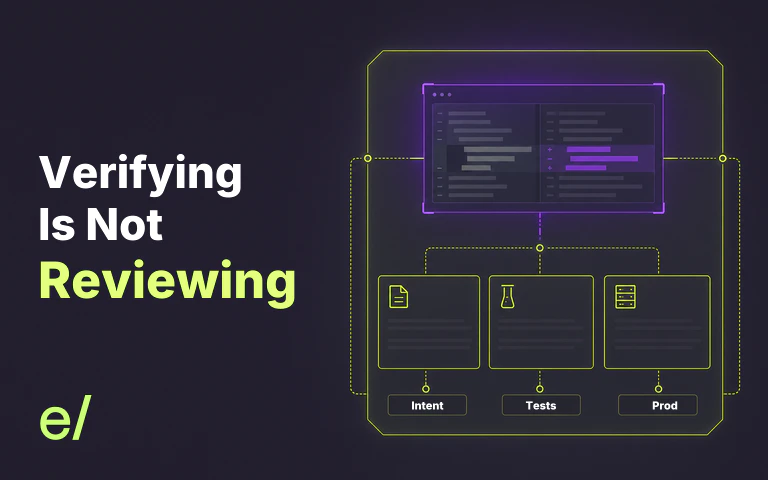
Code review asks whether the proposed change is understandable and correct. Regression analysis asks a broader question: which existing behaviors, services, dependencies, and operational paths could the change affect? That requires context beyond the changed files and beyond the checks an editor happens to run.
Coding agents make this boundary more important. An agent can edit several parts of a repository and run the available checks, but passing those checks does not establish that every affected product behavior was examined. Verifying AI-generated code is a different job from reviewing it, especially when the implementation surface grows faster than the team’s ability to inspect it.
The editor remains the execution and feedback surface. Release confidence depends on connecting the change to the wider system and the behavior that must remain intact. That is why reviewing the diff was never the hard part.
Are VS Code Extensions Safe?
VS Code extensions should be evaluated like software, not like passive editor preferences. Microsoft’s Marketplace documentation states that extensions have the same permissions as VS Code itself. VS Code asks users to confirm trust when they first install an extension from a third-party publisher, and Marketplace packages are signed so VS Code can verify package integrity.
Before installing an extension:
- Confirm the exact publisher and extension identifier.
- Read the Marketplace description, requirements, dependencies, and changelog.
- Check whether the extension is maintained and whether its core job now exists in VS Code.
- Review whether it sends code or telemetry to an external service.
- Prefer repository-level recommendations for team-required tools.
- Remove extensions that no longer serve an active workflow.
This matters even more for coding agents. An agent that can read files, edit code, and run terminal commands needs a deliberate permission model. Convenience does not reduce the scope of access.
Frequently Asked Questions
What are the best VS Code extensions in 2026?
The best VS Code extensions in 2026 include GitHub Copilot, Claude Code, OpenAI Codex, ESLint, Prettier, Error Lens, SonarQube for IDE, GitLens, GitHub Pull Requests, Playwright Test, Jest, Dev Containers, Container Tools, and Remote SSH. The right set depends on your language, repository, testing framework, and development environment.
How many VS Code extensions should I install?
Install the smallest set that covers your actual workflow. Start with language support, one formatter or linter strategy, one primary coding agent, the test integration your project uses, and any required remote or container tools. Add another extension only when it solves a recurring problem without duplicating an existing tool.
What is the best AI extension for VS Code?
Claude Code is a strong option for repository-level agent work in VS Code. OpenAI Codex is a close alternative and can be the better fit for teams centered on ChatGPT or background tasks. GitHub Copilot remains the strongest integration choice for GitHub-centered organizations. Evaluate all three on representative repository tasks before standardizing.
Are VS Code extensions safe?
VS Code extensions run with the same permissions as VS Code, so install them with the same care as desktop software. Verify the publisher and extension identifier, review the Marketplace page and permissions, prefer maintained extensions, and remove tools that you no longer use.
Do I need both ESLint and Prettier?
Many JavaScript and TypeScript teams use both because they solve different jobs. ESLint checks code against configurable quality rules, while Prettier applies a consistent format. Configure their responsibilities so they do not fight over the same formatting decisions.